Creating Map
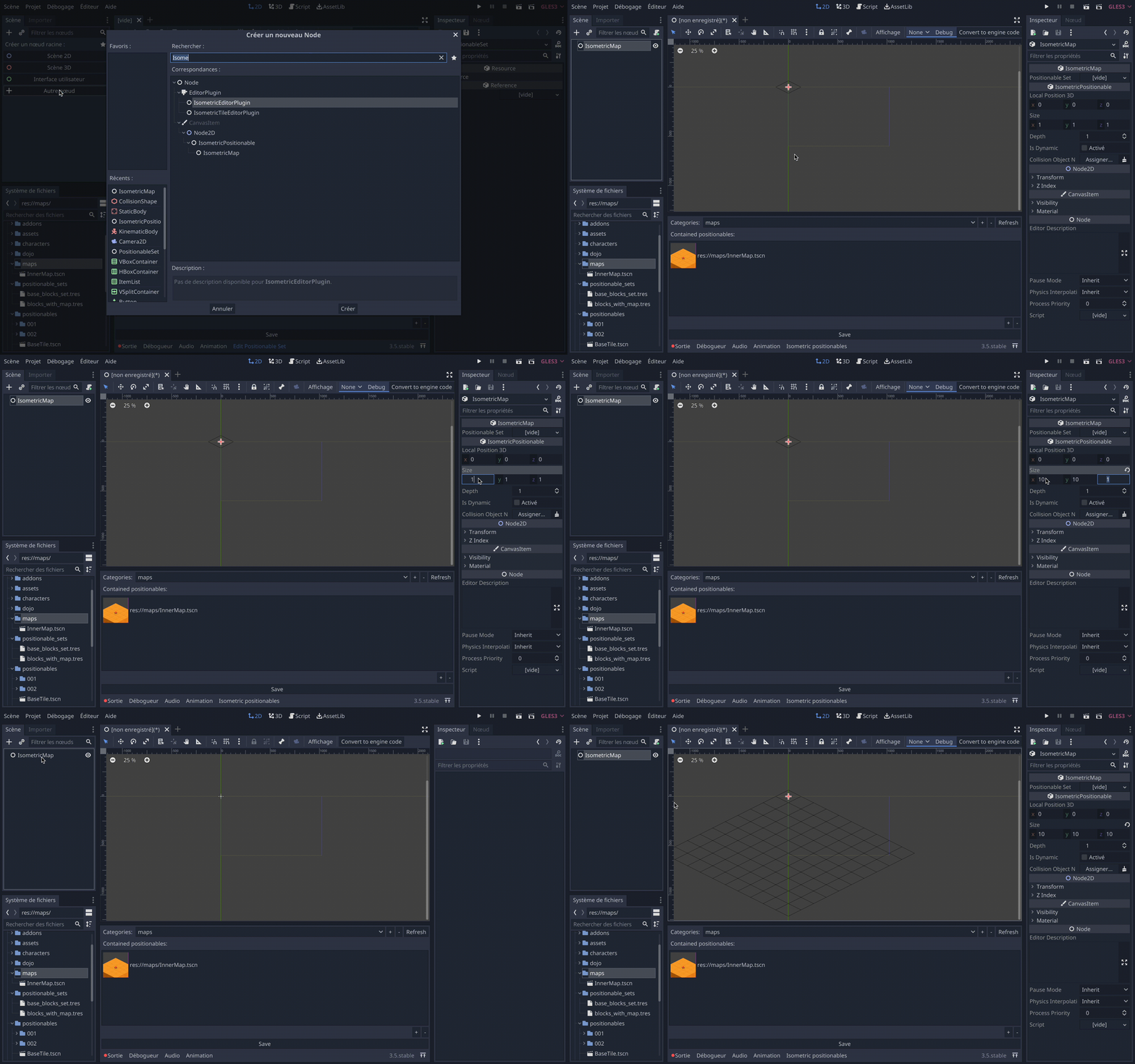
In order to create a map, create a new scene with IsometricMap as root node. Then you can set its size, as you can do
with classic IsometricPositionable:
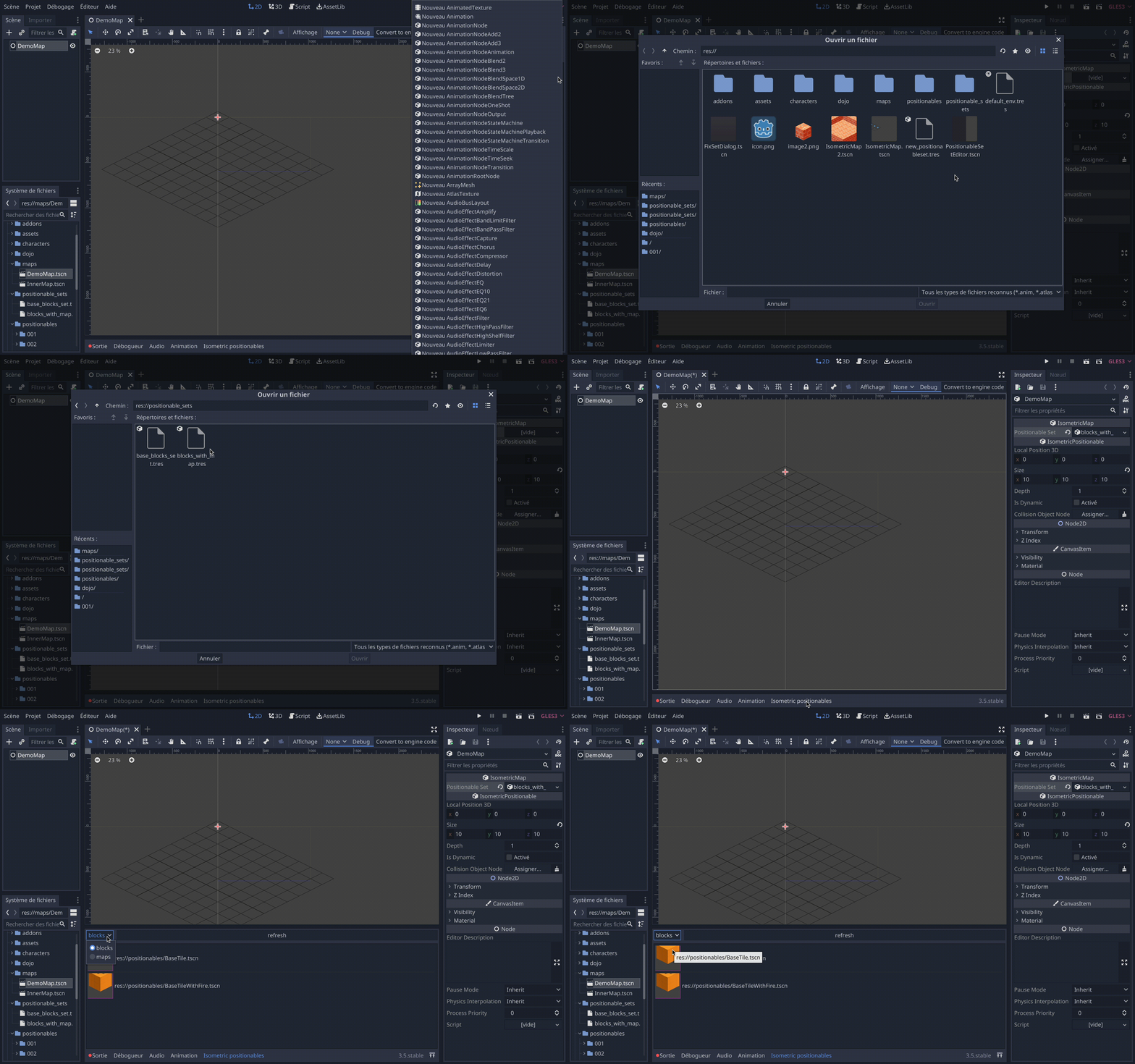
Then, you should assign a PositionableSet resource to your map, using node inspector:
Edition modes
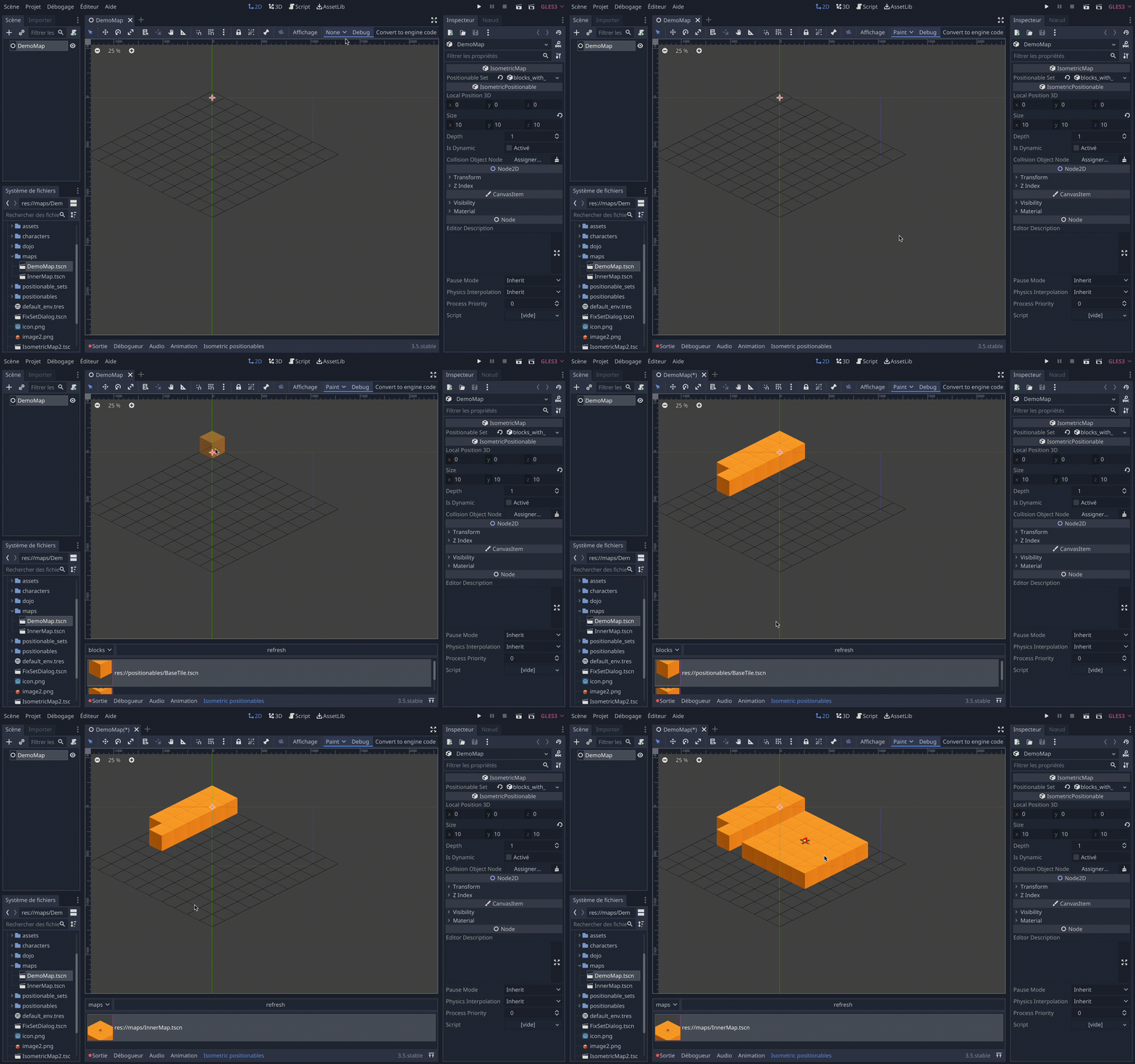
There are several edition modes to help you create maps: - Paint - Drag & Drop - Select
Note that Ctrl (or ⌘ Command) + Z is available.
Paint
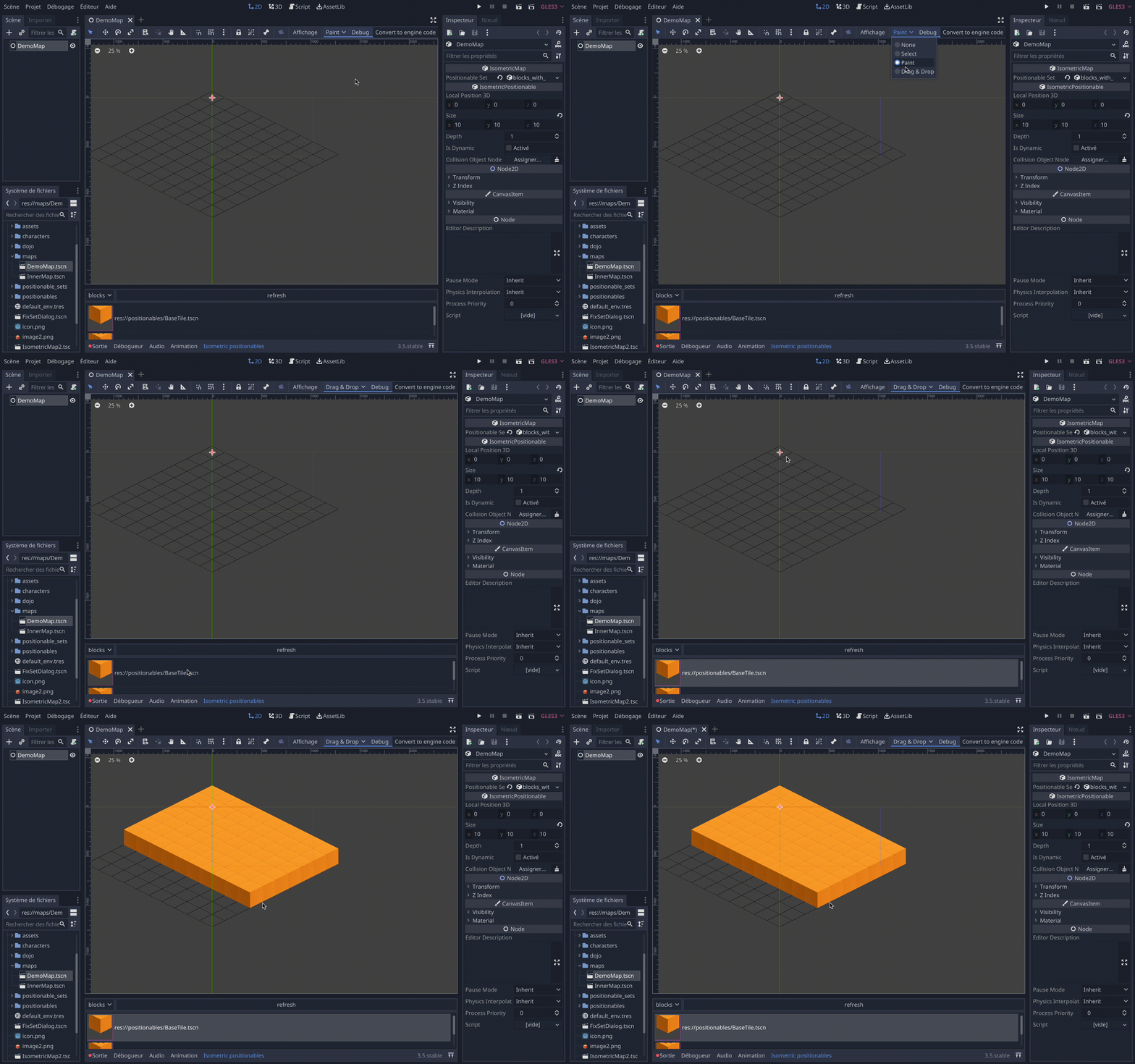
In paint mode, you will place positionable when clicking or maintaining left click:
Drag & drop
In drag and drop mode, you will place positionables by maintaining left click and drawing a rectangle:
Select
In select mode, you can select one or multiple positionables. To select several maintain Ctrl
(or ⌘ Command).
To select all elements in map, use Ctrl (or ⌘ Command) + A
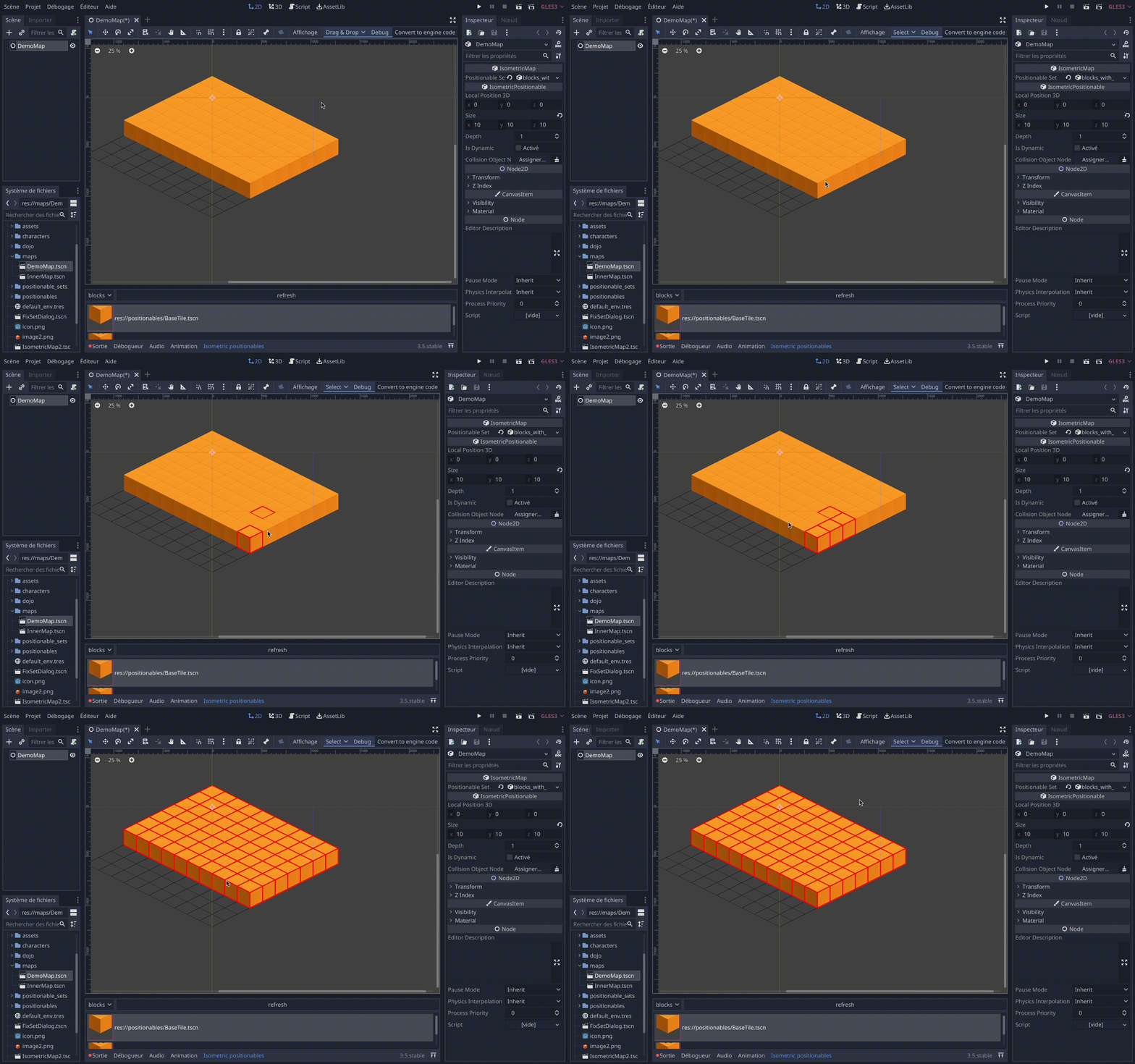
Note that you can delete selected positionables on map by using ⌫.

None
In none mode, no input is forwarded to the plugin, in this mode you can use classic godot commands, like saving the scene.
Moving and rotating edition grid
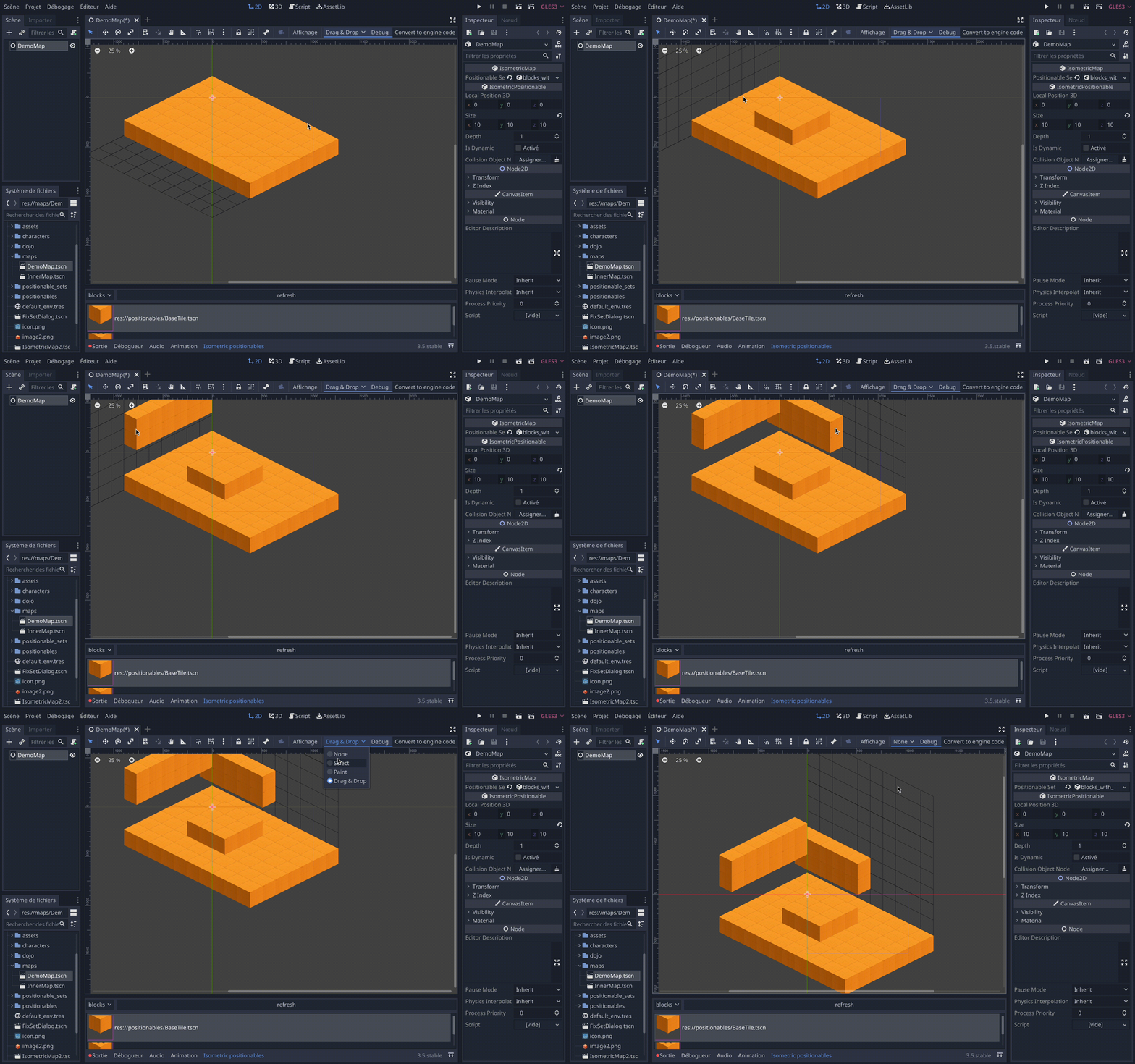
When you edit map, selection, painting and drag & drop are bound to the edition grid position.
You can move up and down this grid by using ↑ and ↓ keyboard arrows.
You can switch its normal axis by using ← and → arrows.
Limit displayed tiles
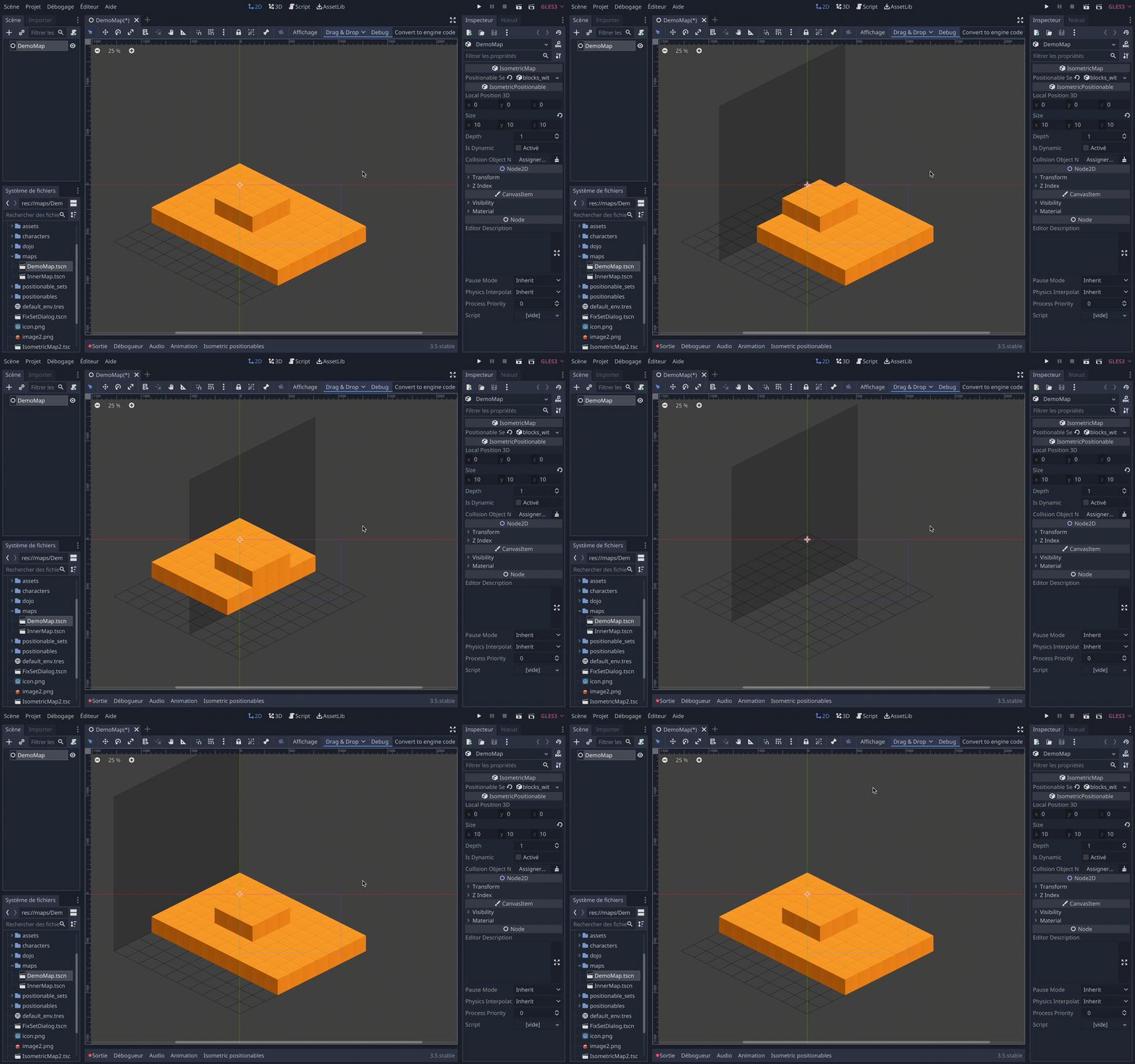
In order to debug your map, you can limit tiles you display on an axis. You can limit on all axis using two plans, one for minimum limit, one for maximum.
Here are commands to limit on axis:
- X: Ctrl (or ⌘ Command) + 1 + scroll
- Y: Ctrl (or ⌘ Command) + 2 + scroll
- Z: Ctrl (or ⌘ Command) + 3 + scroll
Those will set the limit on maximum, if you want to set minimum limit maintain ⇧ Shift additionally.